
Take a photo of a page and hear it read aloud: VoiceNPC 1.5

Some of what you want to hear is already on paper: a chapter of a book, a printed script, a worksheet your kid brought home. Until now, getting it into VoiceNPC meant typing it out. Version 1.5 reads it off a photo instead.
Two ways in, beside Paste
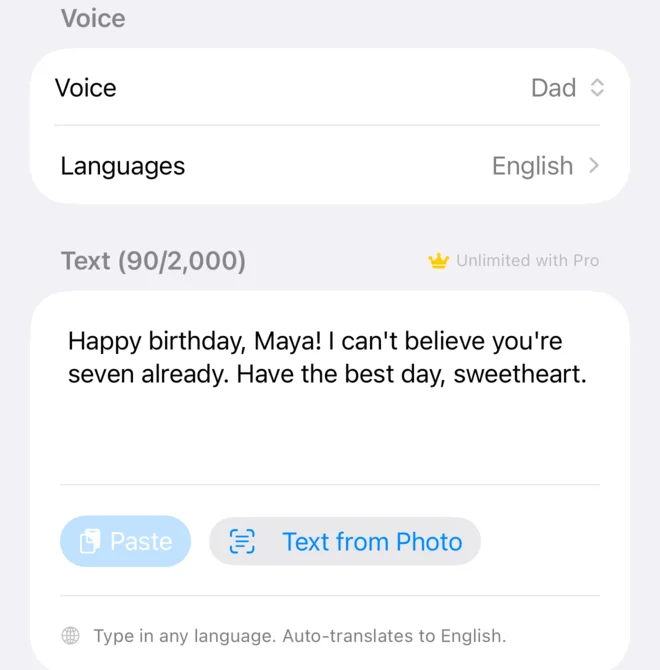
Every text box on the Generate screen now has a Text from Photo button next to Paste: the main editor, the Script editor and each section of a multi-voice project. Tap it for two choices.
Scan Text opens the iPhone’s built-in document camera. Hold it over the page and it finds the edges, crops away the table and straightens a page you shot at an angle. You can scan more than one page; they all go into the same box with a blank line between them.
Choose Photo opens the photo picker, for a page you photographed earlier.
Fix a word, then generate
The words are added at the end of the box, where a paste would go. Lines that wrapped on the page come back joined into whole paragraphs.
There is no review screen in between. If a word came out wrong, tap it and fix it right there in the box. For a long page, read it through once before you tap Generate.
A chapter at a time, one section per page (Pro)
A multi-voice project, which VoiceNPC calls Guided, gets a second button beside Add Section: Add Sections from Photos. Use Scan Pages to scan several pages in one go, or Choose Photos to pick up to 20. Each page becomes its own section, in the order you scanned or picked them. You can cancel while it reads, and then nothing is added.
New sections start with your default voice and language, and you can change each one on its own. So a printed chapter becomes something you can cast: a different voice for each page, or one narrator all the way through.
Read in one language, hear it in another
Text from a photo is ordinary text, so the on-device translation works on it too. Scan a page in French, let the app translate it, and hear it in English in your own cloned voice. With Pro, pick several target languages and get every version from one scan.
The photo stays on your phone
Apple’s Vision framework recognizes the text on the device. VoiceNPC keeps the words you see in the box and never stores or uploads the photo.
The first time you tap Scan Text, the app asks for the camera. If you say no, the app points you to Settings, and Choose Photo still works. Choose Photo uses the system picker, so the app receives only the photo you choose and never sees the rest of your library.
Get it
Update VoiceNPC to 1.5, open the Generate screen and tap Text from Photo. It is a free download on the App Store, and Text from Photo works on the free plan.
Questions
Is Text from Photo free?
Yes. It works on the free plan, under the same 2,000-character limit as typing or pasting. Text past the limit is cut and the app tells you. Turning several pages into the sections of a project is part of Pro.
Does the photo leave my phone?
No. Apple's Vision framework recognizes the text on the device. VoiceNPC keeps the words and never stores or uploads the photo. Choose Photo goes through the system photo picker, so the app only receives the photo you pick and never asks for access to your library.
Which languages can it read?
Every language VoiceNPC speaks: English, Chinese (simplified and traditional), Japanese, Korean, French, German, Spanish, Russian, Italian and Portuguese.
What if it gets a word wrong?
There is no separate review step. The text lands in the same editor you type in, so tap the word, fix it, then generate.